Showing posts with label OFFICE7. Show all posts

Monday, April 23, 2018

Microsoft Office7; Font, Font Size, Aligning, letter case and bullets


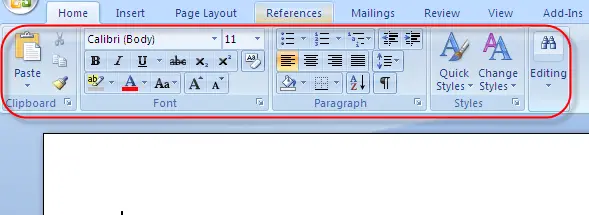
Image result for photos of office 2007 Word Ribbon
a)    Font (Calibri)
This is the format of the characters used in a document. To format the font of a word document means changing the appearance of the characters.
The following steps are use to format the font of a word document.
-       Make sure you are under the home menu or left click on the home menu.
-       Go to font and left click on the small arrow beside it ( a series of fonts are displayed below in alphabetical order)
-       Select the one which suit your purpose by left clicking on it.


b)    Font size
Here we are talking on how small or how large a character is displayed. This function is use to increase/decrease the physical appearance of a character
To change font size;
-       Under the home menu, go to Font Size and left click on the small arrow beside
-       Select a font size that suits your purpose by left clicking on it.

c)     Aligning part or whole document
To align a document or part of a document, we do the following;
Make sure you’re under the home menu
·        Go to paragraph
·        Select Align Text Left to align text to the left
·        Select Align Text Right to align text right
·        Select Center to centralize text
·        Select Justify to justify text.
To justify a text means to instruct the computer to automatically try to make the left and the right ends of all the lines to fall on the same line.

d)    Changing letter case.
This is to toggle letters between lower and upper case.
How to change letter case.
-       Under home menu go to Change Case
-       Left click on the small arrow beside.
-       Select Uppercase to change to capital letters.
-       Select Lowercase to change to small letters.
-       Select Sentence case to change into a sentence (i.e. first letter is capitalize).
-       Select Toggle Case to Use a mixture of capital and small letters.
-       Select Capitalize Each Word to make each word in a sentence to begin with a Capital letter.

e)     Assigning bullets: Bullets are use to present an outline or use to state points. To assign a bullet;
-       Go to the bullet function and click on it.
-       Select one of the bullets depending on your choice by clicking on it.
-       Click on define new bullet to use an object as a bullet which is not present in the default list.

Microsoft Office7; Line spacing, Font Colour, Numbering, Shadow, Sort, and Others


Image result for photos of office 2007 Word Ribbon
f)      Bold, Underline and Italics: Under the home menu;
-       Click on “B” to bold a text.
-       Click on “U” to underline a text.
-       Click on “I” to change the text from normal to italics.

g)     Line spacing: Use to determine the vertical between trwo consecutive lines of text.
-       Click on Line Spacing.
-       Select a line spacing by clicking on it.
-       You can also add an additional spacing before/after a paragraph.

h)    Font Colour: Here we determine the colour of the letters in a text. To do this;
-       Go to Font Colour and click on the small arrow beside.
-       Select a colour depending on your purpose by clicking on it.


i)       Numbering: Use to start a number list. To executethis;
-       Click on the small arrow besides Numbering.
-       Select a number format by clicking on it

j)       Shading: Use to color the background of a selected text or paragraph.
-       Click on the small arrow besides shading.
-       Select a desired background color by clicking on it.
-       You can also click on more colors to select a custom color.

k)    Sort: Use to make text or numerical values in paragraph form or in a tabular form appears in Alphabetical order or in order of numerical values; either in increasing or decreasing manner.
-       Under the Home Menu click on Sort.
-       Under Type, select the type of sorting to be carried out (text, numbers or date).
-       Select Ascending or Descending.
-       Click on Ok.

l)       Other important functions to note.
-       Click on x2 or x2 top either use a superscript or subscript respectively.
-       Click on abc to strike though a text or word.
-       Click on “A” or “A” to either grow or shrink font respectively.
Note: Editing a document can be done before or after typing the document.
To edit after typing, we must first highlighted. To highlight here means to left click and hold and then move through the section of the text to be edited

Featured Post

COMPUTER CLASSIFICATION AND COMPUTER APPLICATIONS

CLASSIFICATION OF COMPUTER Computers are classified interns of; ·         Classification by generation. ·         Classification by ...

Popular Posts